

 Laptops
 Phones & tablets
 Desktops
 Computer Parts
 Accessories
A used laptop can look almost new and still have expensive problems hiding inside.
Imagine spending ₦300,000 on a laptop that looks beautiful.
The body is clean. The keyboard looks new. The seller tells you everything is working perfectly.
You get home, and suddenly:
- The battery barely lasts an hour.
- The laptop switches off unexpectedly.
- One USB port doesn't work.
- The keyboard has faulty keys.
- The storage drive starts developing problems.
Unfortunately, these are things you might not discover by simply looking at the outside of a laptop.
And this is why buying a used laptop should involve more than asking:
"Is this laptop clean, and how many hours does the battery last?"
A better approach is to understand exactly what you're buying.
Whether you're shopping for a USA-used HP EliteBook, Dell Latitude, Lenovo ThinkPad, MacBook, or another pre-owned laptop in Nigeria, there are important checks you should perform before paying.
In this guide, we'll explain 15 things to check before buying a used laptop, how to perform some of these tests yourself, and how to identify warning signs that deserve further investigation.
Let's get started.
Why Should You Test a Used Laptop Before Buying?
Used laptops can offer excellent value for money.
For example, your budget may allow you to purchase a pre-owned premium business laptop with a powerful processor, SSD storage, a quality keyboard, and a Full HD display instead of a lower-spec brand-new laptop.
But used laptops have already experienced some level of use.
That means their physical condition, battery capacity, and component health can vary.
Two laptops of exactly the same model can have different conditions depending on how they were previously used and maintained.
This is why you should evaluate the individual laptop, not just the model name.
A professionally tested laptop with a minor cosmetic scratch may be a more sensible purchase than a beautiful-looking machine with hidden functional defects.
15 Things to Check Before Buying a Used Laptop
1. Check the Laptop's Physical Condition
Start with the outside.
Look carefully at the laptop's body, lid, bottom panel, and corners.
Check for:
- Cracks in the casing
- Major dents
- Loose or broken hinges
- Missing screws
- Damaged charging ports
- Signs of liquid exposure
- Unusual gaps between body panels
Open and close the laptop gently.
The hinges should move smoothly and hold the display securely.
If the screen wobbles excessively or the hinge area appears broken, ask for further inspection.
Are scratches a problem?
Not necessarily.
A small scratch on the lid of a used laptop doesn't automatically affect its performance.
However, a cracked hinge, damaged charging port, or distorted chassis can indicate a more serious problem.
Buying tip: Distinguish between cosmetic imperfections and functional defects. What matters most is whether the laptop works properly and whether its condition has been accurately disclosed.
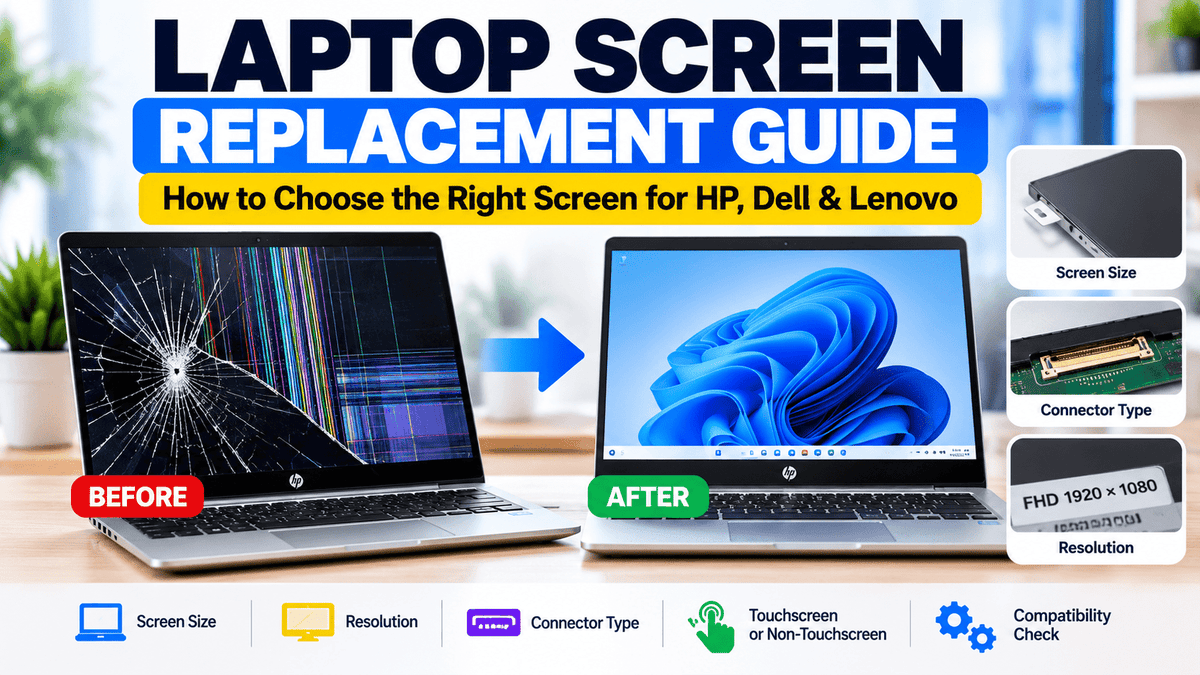
2. Test the Laptop Screen
The display is one of the first components you should inspect carefully.
A laptop can have excellent specifications but still be frustrating to use if its screen has defects.
Check for:
- Horizontal or vertical lines
- Dead or stuck pixels
- Dark patches
- Uneven brightness
- Excessive discoloration
- Screen flickering
- Cracks or pressure damage
How to test the display
Open a plain white image and examine the screen.
Then display black, red, green, and blue backgrounds.
These can make certain display defects easier to notice.
Increase and decrease the brightness to confirm that the controls work.
Also check the screen's actual resolution.
In Windows, open:
For many students and professionals, a Full HD display with a resolution of 1920 × 1080 provides a comfortable working experience.
However, screen quality also depends on panel type, brightness, and color accuracy.
Important: If you're buying a laptop with a known display imperfection, make sure you understand exactly what the issue is before paying.
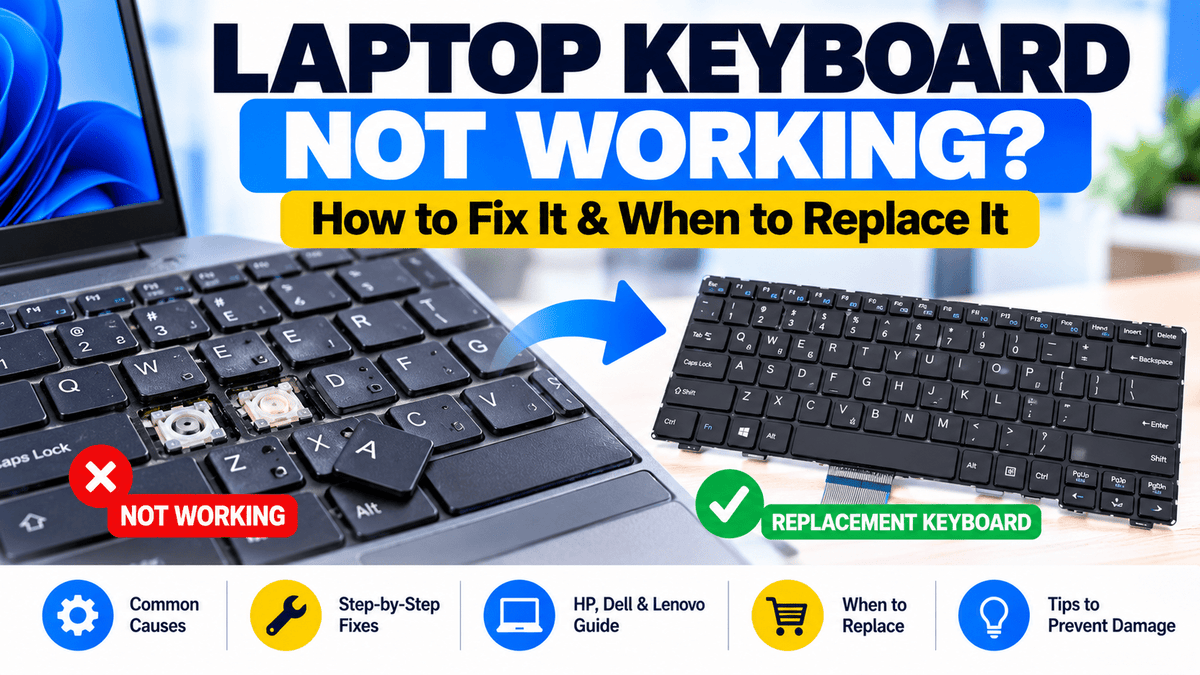
3. Test Every Keyboard Key
Don't assume the keyboard is working simply because it looks clean.
Open Notepad or another text editor.
Press the letters, numbers, and punctuation keys.
Pay particular attention to:
- Spacebar
- Enter
- Backspace
- Shift
- Ctrl and Alt
- Arrow keys
- Function keys
Check whether keys respond correctly or require excessive force.
If the laptop has a backlit keyboard, confirm that the keyboard light works.
Also pay attention to the keyboard layout.
Some imported laptops use keyboard layouts that differ slightly from what Nigerian buyers are accustomed to.
Make sure you're comfortable with the arrangement.
4. Check the Touchpad and Mouse Controls
A faulty touchpad can make a laptop difficult to use when you don't have an external mouse.
Move your finger around the touchpad.
Test:
- Cursor movement
- Left and right clicking
- Two-finger scrolling
- Tap-to-click, if supported
- Multi-finger gestures, where available
Check for erratic cursor movement, unresponsive areas, or buttons that fail intermittently.
If the laptop has a pointing stick, such as the TrackPoint found on certain Lenovo ThinkPads, test that too.
A laptop's touchpad may behave differently depending on its settings, so confirm that the feature is enabled before concluding that it is faulty.
5. Inspect the Charging Port and Test the Charger
This is especially important for buyers who depend on their laptops throughout the day.
Connect the charger and confirm that the laptop recognizes it.
Look for the charging indicator.
Check whether the charging connection is stable.
Gently reposition the laptop during normal use and see whether the charging status changes unexpectedly.
Do not force or deliberately bend the charging connector.
What should you look out for?
- Charging only at a particular cable angle
- Repeatedly disconnecting and reconnecting
- Loose charging socket
- Damaged cable insulation
- Unusual burning smell
- Charger that becomes excessively hot
Check that the charger has the correct connector and electrical specifications for the laptop.
Some USB-C laptops also require chargers capable of delivering a particular wattage.
A charger that physically fits isn't automatically suitable.
Buying tip: Always confirm which charger and accessories are included in the purchase. Don't assume every laptop comes with the same accessories.
6. Check the Laptop Battery Health
This is one of the most important checks for anyone buying a used laptop in Nigeria.
A seller may tell you:
"The battery lasts five hours."
But five hours doing what?
Typing a document?
Watching YouTube?
Running Zoom and Photoshop?
Battery runtime depends on usage, screen brightness, hardware and battery condition.
That's why you should check the battery's actual capacity where possible.
How to generate a Windows battery report
Step 1: Search for Command Prompt.
Step 2: Right-click it and select Run as administrator.
Step 3: Enter:
powercfg /batteryreportStep 4: Press Enter.
Step 5: Open the generated HTML report.
Look for:
- Design Capacity
- Full Charge Capacity
- Cycle Count, where reported
- Battery Capacity History
Compare the full charge capacity with the design capacity to estimate how much of the original capacity remains.
Microsoft documents this built-in battery-report procedure in its Windows support guide.
However, a battery report is not a substitute for checking actual battery behavior.
Unplug the laptop and use it for a while.
Watch for unusually rapid discharge, sudden percentage drops, and unexpected shutdowns.
Also inspect for possible battery swelling, such as a lifted bottom panel or distorted touchpad.
If you suspect battery swelling, stop using the laptop and have it inspected professionally.
We have a separate guide explaining the entire process, including how to interpret the battery report.
Read: How to Check Laptop Battery Health Before Buying a Used Laptop →
7. Verify the Processor and RAM
Don't buy a laptop simply because the advert says:
"Core i7, 16GB RAM."
You need to verify the information.
How to check the processor and RAM
On Windows, open:
Under Device specifications, check the processor and installed RAM.
You might see:
Processor: Intel Core i5-10310U
Installed RAM: 16GB
These are more useful than a vague description such as "Core i5 laptop."
Why does processor generation matter?
A Core i7 processor isn't automatically better than every Core i5.
Processor generation, model, power class, and architecture all matter.
That's why it's important to check the full processor name.
We explain this in detail in our separate guide:
Core i5 vs Core i7: Which Laptop Should You Buy in Nigeria? →
For RAM, remember that more memory can improve demanding multitasking, but it doesn't automatically make every application faster.
Read: 8GB vs 16GB RAM – How Much RAM Do You Really Need? →
8. Check Whether the Storage Is SSD or HDD
This is where many budget laptop buyers make mistakes.
A seller advertises:
"500GB storage."
Another seller advertises:
"256GB SSD."
Which is better?
For everyday responsiveness, the SSD often provides a much better experience than a traditional mechanical HDD.
SSDs generally provide faster startup, application loading, and file access.
But the amount of storage you need depends on your files and workload.
How to check storage capacity
Open:
Confirm the available storage capacity.
How to check whether the drive is SSD or HDD
Open Task Manager and select:
Windows may identify the drive as SSD or HDD.
Alternatively, search Windows for:
Defragment and Optimize Drives
Check the drive's Media type.
Some configurations may require additional inspection to establish the precise storage model.
Don't ignore drive health
A laptop can contain an SSD and still have storage-related faults.
Watch for:
- Frequent unexplained freezing
- Repeated file errors
- Unusually slow file access
- Storage-related error messages
- Unexpected disappearance of the drive
Manufacturer diagnostic tools can help identify certain storage problems, although passing a quick test does not guarantee that a drive will never fail.
If the laptop has an HDD, listen for unusual clicking or grinding sounds.
These should be investigated before purchase.
Looking for a Professionally Tested Used Laptop?
Shopinverse offers USA-used laptops from HP, Dell, Lenovo, and other brands across different specifications and budgets.
Browse available models and compare their processors, RAM, storage, display features, and stated conditions before ordering.
9. Test the USB, HDMI, and Other Ports
A laptop can look perfect while one of its ports is faulty.
Inspect the ports carefully.
Depending on the model, test:
- USB-A ports
- USB-C ports
- HDMI or DisplayPort
- Headphone jack
- Ethernet port
- Memory card reader
- Other ports you intend to use
Use a known-working accessory to test the relevant connections.
For example, connect an external mouse to a USB port.
If HDMI is important for presentations, test it with a compatible external display where possible.
Not every USB-C port supports charging or video output, so verify which features the particular model is designed to support.
Buying tip: Don't assume that because a laptop has a port, every feature associated with that connector is supported.
10. Check Wi-Fi and Bluetooth
Most laptop buyers use their computers for internet-based activities.
That's why you should confirm that the wireless connectivity works properly.
Wi-Fi test
Connect the laptop to a trusted Wi-Fi network or your own mobile hotspot.
Open a few websites and check whether the connection remains stable.
Move a short distance away from the router or phone to see whether the connection behaves normally.
If you encounter connection problems, establish whether the issue comes from the laptop or the network before concluding that the wireless adapter is faulty.
Bluetooth test
If Bluetooth is included, enable it.
Connect a Bluetooth mouse, speaker, or another compatible device.
Check whether pairing and communication work properly.
Wi-Fi and Bluetooth may be especially important for students, remote workers and business owners who depend on wireless accessories.
11. Test the Webcam, Microphone and Speakers
Imagine buying a laptop for online classes or remote meetings, only to discover that the webcam doesn't work.
Don't wait until your first Zoom meeting to find out.
How to test the webcam
Open the Windows Camera application.
Check that the webcam displays an image.
If the laptop has a physical webcam shutter, confirm that it is open.
How to test the microphone
Open the Windows Sound settings or a trusted recording application.
Record a short voice clip.
Play it back and check that your voice is clear.
How to test the speakers
Play a video or audio file.
Check for distorted sound, crackling, and unexpected interruptions.
Also test the headphone jack if you expect to use wired headphones.
Important: Some laptop configurations are sold without a webcam or with particular features absent. Always confirm the listed specifications rather than assuming every model has the same equipment.
12. Check for Overheating and Unusual Fan Noise
Some laptop problems don't become obvious immediately after startup.
A computer may work normally for a few minutes and then begin experiencing problems when its processor becomes busy.
That's why it's helpful to observe the laptop during normal use.
Open a few applications and browse for a while.
Watch for:
- Unexpected shutdowns
- Frequent freezing
- Excessive heat during light use
- Unusual grinding noises from the fan
- Repeated system crashes
- Noticeable performance problems
Remember that laptops can become warm during demanding activities.
Fan noise alone doesn't automatically indicate a defect.
A performance laptop running a demanding application may produce more fan noise than an ordinary business laptop.
What matters is whether its behavior is appropriate for the workload and whether it remains stable.
Can you run a hardware diagnostic?
Some manufacturers provide built-in diagnostic tools.
For example, supported Dell laptops can access pre-boot diagnostics through the F12 startup menu.
Manufacturer diagnostics can help identify certain hardware problems before Windows starts.
Ask the seller for assistance if you're unfamiliar with the procedure.
13. Verify the Graphics and Special Features
If you're buying a laptop for graphic design, engineering, gaming, or video editing, this step is especially important.
Don't rely on advertisements that simply say:
"4GB Graphics."
Find out exactly what graphics processor the laptop has.
For example:
- Intel integrated graphics
- AMD Radeon integrated graphics
- NVIDIA GeForce dedicated graphics
- NVIDIA professional workstation graphics
The precise GPU model matters more than a vague memory description.
In Windows, you can inspect the GPU through:
Some laptops have both integrated and dedicated graphics.
Check the hardware configuration against the product description.
What about touchscreen laptops?
If you're buying a touchscreen model, test the touchscreen.
Open a drawing application and try touching different areas of the display.
Check whether the screen responds consistently.
For a convertible 2-in-1 laptop, test the hinge movement and supported operating modes.
If stylus support is important to you, confirm that the particular laptop supports the pen you intend to use.
Not every touchscreen laptop supports an active stylus.
For more guidance on creative hardware, read:
Best Laptops for Graphic Design & Video Editing in Nigeria →
14. Check the Operating System and Device Access
Before buying a used laptop, make sure it boots normally and that you understand its operating system and software status.
Check that the computer can reach the desktop and that the basic system functions work.
If you're purchasing a Windows laptop, confirm which version of Windows is installed and whether the hardware supports the software you intend to use.
Also ask whether Windows activation is included.
A laptop running Windows is not automatic proof that a genuine activated Windows license is included.
Some used computers are sold without Windows activation.
Check the seller's product description and ask for clarification where necessary.
Check for unwanted account restrictions
Make sure the device is ready for use by its new owner.
Watch for unexpected administrator restrictions, organization-management messages, or account locks that the seller cannot resolve.
If the laptop has a BIOS or firmware password, establish whether it can be legitimately removed by the seller.
For a MacBook, confirm that any previous owner's Activation Lock has been removed before completing the purchase.
For a Chromebook, check whether it is subject to organization or school management restrictions.
These checks are particularly important when buying devices that were previously used in corporate or educational environments.
Buying tip: Ask the seller to demonstrate that the computer can be set up and used legitimately by its new owner. Don't purchase a machine with unresolved ownership or management restrictions.
15. Confirm the Warranty, Product Description and Seller's Reputation
Finally, don't concentrate so much on technical specifications that you forget the seller.
Before making payment, ask:
- What warranty is included?
- How long does the warranty last?
- What faults are covered?
- Are screens and batteries covered?
- What happens if a problem develops after purchase?
- Will I receive a receipt?
- Is the product description accurate?
- Are the photos of the actual laptop or representative images?
Read the warranty terms carefully.
For example, Shopinverse publishes a warranty policy outlining the scope of hardware coverage, exclusions, and claim requirements.
Customers should review the applicable warranty period displayed on the product page and retain their receipt.
Shopinverse's published policy excludes screen-related defects from warranty coverage, so it is particularly important to inspect the screen and understand the device's stated condition before purchase.
Read the full policy here:
You can also check the seller's customer reviews and after-sales support information.
Remember that a low price is only a good deal if the laptop meets your needs and its condition is accurately represented.
Can a Used Laptop Have Scratches and Still Be Good?
Absolutely.
A used laptop doesn't have to look brand new to be a worthwhile purchase.
Think about a business laptop that has been used in an office.
Its lid may show a few signs of previous use, while its processor, RAM, storage, display, keyboard, and other components remain fully functional.
That can still be a sensible purchase.
On the other hand, a laptop with a beautiful exterior may have internal problems.
This is why we encourage buyers to distinguish between:
Cosmetic Imperfections
Minor marks, light scratches, or other clearly disclosed signs of previous use that do not affect normal functionality.
Functional Defects
Problems affecting the keyboard, display, charging, connectivity, stability, or other important laptop functions.
Cosmetic condition matters, but it should never be the only thing you consider.
Should You Buy a USA-Used Laptop or a Brand-New Laptop?
This depends on your budget and what you need the laptop to do.
Buying a pre-owned premium business laptop can sometimes give you access to features that would cost considerably more in a comparable brand-new premium machine.
For example, your budget might allow you to get:
- A business-class processor
- 8GB or 16GB RAM
- SSD storage
- Full HD display
- Backlit keyboard
- A business-oriented chassis
However, a brand-new laptop may offer advantages such as a new battery, a longer manufacturer warranty, and access to a newer hardware platform.
Neither option is automatically right for everyone.
The important thing is to compare the actual specifications, condition, warranty, and price.
For buyers working within a specific budget, our guide to laptops under ₦300,000 in Nigeria is another useful place to start.
What If You're Buying a Used Laptop Online?
Not every customer has the opportunity to physically inspect a laptop before ordering.
If you're buying online, the process is slightly different.
Before placing your order:
- Read the full product specifications.
- Confirm the processor model and generation.
- Check the RAM and storage configuration.
- Read the stated product condition.
- Review the available product images.
- Confirm the included accessories.
- Check the warranty terms.
- Ask the seller about any feature that is unclear.
If you need a particular feature, such as touchscreen, webcam, dedicated NVIDIA graphics, Full HD display, or keyboard backlight, confirm that the exact configuration you are purchasing includes it.
Different configurations of the same laptop model can have different features.
For example, one Dell Latitude configuration may have a touchscreen while another version of the same model does not.
Don't assume every configuration is identical.
Why Buy a Professionally Tested Used Laptop?
When you buy a pre-owned laptop, you are trusting the seller to represent its condition accurately.
That is why professional testing and transparent product descriptions matter.
At Shopinverse, our USA-used laptops undergo testing and quality inspection before being offered for sale.
Battery functionality is also checked as part of the inspection process.
Our product descriptions identify the condition of each device, including disclosed cosmetic imperfections where applicable.
We also provide warranty and after-sales support in accordance with our published terms.
However, you should still select the laptop that matches your intended workload.
A properly tested Core i5 business laptop isn't automatically suitable for demanding 3D rendering simply because it works perfectly.
Specifications and condition must both be considered.
Shop USA-Used Laptops in Nigeria
Explore professionally tested HP, Dell, Lenovo, and other pre-owned laptops across different configurations and budgets.
Compare the specifications and condition of available products before making your decision.
Frequently Asked Questions About Buying Used Laptops
What is the first thing to check when buying a used laptop?
Start by confirming the exact laptop model, physical condition, and specifications. Then inspect the display, keyboard, charging system, battery, and other important hardware.
How do I know if a used laptop is in good condition?
Check whether its components function normally, whether it remains stable during use, and whether the advertised specifications match the actual hardware. A clean appearance alone is insufficient.
How can I check a used laptop's battery health?
On supported Windows laptops, generate a battery report using the powercfg /batteryreport command. Compare the design capacity with the full charge capacity, and test the laptop while unplugged.
Is Core i7 always better than Core i5?
No. The exact processor models, generations, and performance classes matter. A suitable newer Core i5 can outperform an older Core i7 in certain workloads.
Is 8GB RAM enough for a used laptop?
For many everyday activities, yes. However, 16GB provides additional memory for multitasking and demanding applications. Your workload should guide the decision.
Should I buy a used laptop with a minor scratch?
A minor cosmetic scratch does not necessarily affect functionality. Assess the actual condition, disclosed imperfections, and price before deciding.
Is SSD better than HDD for a used laptop?
For everyday responsiveness, SSD storage is generally preferable. However, capacity, condition, compatibility, and price also matter.
Can I upgrade the RAM of a used laptop?
Some laptops support RAM upgrades, while others have soldered memory. Confirm the specific model's upgrade options before purchasing.
Is it safe to buy a USA-used laptop in Nigeria?
A pre-owned laptop can be a practical purchase when its condition is accurately represented, the device is properly tested, and the seller provides clear after-sales terms.
What is the most important thing to remember when buying a used laptop?
Don't judge the computer using one specification or its physical appearance alone. Consider the complete hardware configuration, functionality, battery, condition, price, and warranty.
Quick Checklist: What to Test Before Paying
Save this checklist so you can refer to it when buying your next laptop.
USED LAPTOP BUYING CHECKLIST
☐ Physical condition and hinges
☐ Display and brightness
☐ Keyboard and touchpad
☐ Charging port and charger
☐ Battery health and runtime
☐ Processor and RAM
☐ SSD/HDD type and capacity
☐ USB, HDMI and other ports
☐ Wi-Fi and Bluetooth
☐ Webcam, microphone and speakers
☐ Fan noise and system stability
☐ Graphics and special features
☐ Touchscreen or convertible functions
☐ Operating system and device access
☐ Warranty, receipt and seller reputation
Final Thoughts: Buy Smart, Not Just Cheap
The goal when buying a used laptop isn't simply to find the cheapest machine available.
It's to find a laptop that gives you the right balance of:
- Performance
- Condition
- Battery functionality
- Display quality
- Storage and RAM
- Price
- Warranty and after-sales support
Remember:
A laptop can look beautiful and still have hidden problems.
And a laptop with minor signs of previous use can still be an excellent purchase when it is properly tested and accurately described.
Before paying for your next laptop, take a little time to check what you're actually getting.
Those few minutes could help you avoid an expensive mistake.
Buy smart. Choose right.
Ready to Find Your Next Laptop?
Shopinverse offers USA-used laptops for students, business owners, programmers, creators, and professionals.
Explore available models, compare specifications, and choose a laptop that fits your budget and workload.

Share: